TL;DR
- Monogram's Lightroom plugin broke after a recent update. The company is effectively dead—no fix is coming.
- Switch your Monogram modules to MIDI mode in the Creator app
- Install MIDI2LR (free, open source) to map your hardware to Lightroom controls
- Right-click each dial mapping and set "Two's Complement"—this is the step most people miss
The Problem
I've been using a Monogram Creative Console (formerly Palette Gear) to edit in Lightroom Classic for over a decade—backed them on Kickstarter back when the product was still called Palette. Dials for exposure and white balance, sliders for tone, buttons for copy/paste settings. It became muscle memory. At some point I also discovered the modules could send MIDI commands, which let me control my RME Babyface Pro FS audio interface through TotalMix—volume, mute, headphone routing, all from the same hardware sitting on my desk.
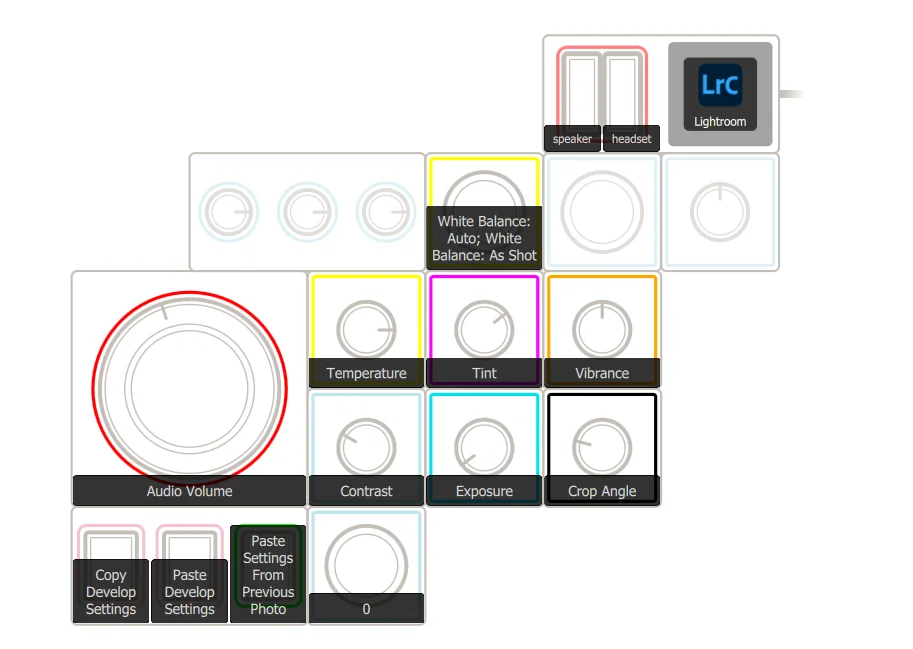
Then the company went dark. No software updates since version 5.10.1. No support responses. Unfulfilled orders. Authentication servers offline. Monogram Creative Console is, for all practical purposes, an abandoned product.
The hardware still worked—until it didn't. After a recent Lightroom Classic update, the native Monogram integration broke. Open Lightroom, and you'll see this in the console:

That error means Lightroom's Monogram plugin can no longer communicate with the Monogram Creator desktop app on port 50110. The plugin expects a local server that isn't responding correctly anymore. And since Monogram isn't going to patch this, we have to fix it ourselves.
Knowing the modules already worked as MIDI controllers got me thinking—what if I skipped the broken Monogram plugin entirely and used a MIDI-to-Lightroom bridge instead? That led me to MIDI2LR. It took a few minutes to get the first command working, and honestly, the MIDI integration is more responsive than the native Monogram plugin ever was.
What You'll Need
- Your Monogram hardware (any modules—dials, sliders, buttons, orbiter)
- Monogram Creator app—download: Windows | Mac (both available at monogramcc.com/download while the site is still up)
- MIDI2LR v6.2.1.0 or later—free, open source: github.com/rsjaffe/MIDI2LR/releases
- Lightroom Classic (any current version)
Monogram's website may not last forever. If monogramcc.com/download is gone by the time you read this, search for "Monogram Creator 5.10.1" or "Creator Alpha"—archived installers are circulating in photography forums and Reddit threads.
How this works: Instead of relying on Monogram's broken Lightroom plugin, we'll put your hardware into standard MIDI mode and use MIDI2LR to talk to Lightroom. MIDI2LR uses Lightroom's native LrDevelopController SDK, so the integration depth is identical to what Monogram's own plugin offered.
Step 1: Switch Monogram Modules to MIDI Mode
Open Monogram Creator. Your hardware should still be detected—the Creator app communicates directly with the modules over USB, separate from the broken Lightroom plugin.
For each module, go to Customize → Turn → MIDI Mode and configure:
- Set the type to CC (Control Change)
- Set Channel to 1
- For dials: select Relative (this is critical—not Absolute)
- For sliders: select Absolute
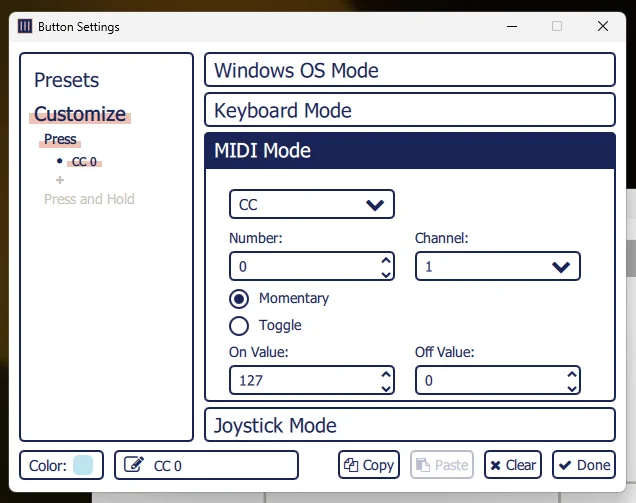
- For buttons: use CC (Momentary) or CC (Toggle) depending on function
- Assign a unique CC number to each control
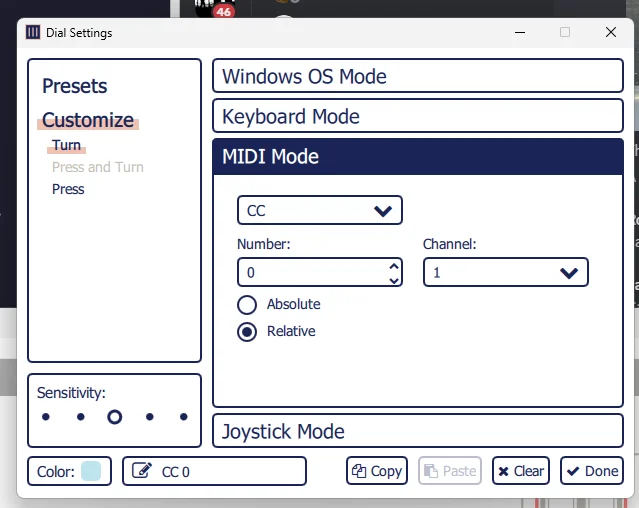
Here's a suggested mapping layout. You can customize this however you want—the CC numbers are arbitrary as long as each control has a unique one.
Dials (CC, Relative, Channel 1)
| CC # | Parameter |
|---|---|
| 0 | Exposure |
| 1 | Temperature |
| 2 | Tint |
| 3 | Contrast |
| 4 | Highlights |
| 5 | Shadows |
| 6 | Whites |
| 7 | Blacks |
Sliders (CC, Absolute, Channel 1)
| CC # | Parameter |
|---|---|
| 8 | Clarity |
| 9 | Vibrance |
| 10 | Saturation |
Buttons (CC, Momentary/Toggle, Channel 1)
| CC # | Function |
|---|---|
| 20 | Flag/Unflag |
| 21 | Star Rating |
| 22 | Copy Settings |
| 23 | Paste Settings |
| 24 | Next Photo |
| 25 | Previous Photo |
Step 2: Install and Configure MIDI2LR
- Download MIDI2LR from GitHub and run the installer
- Launch Lightroom Classic first
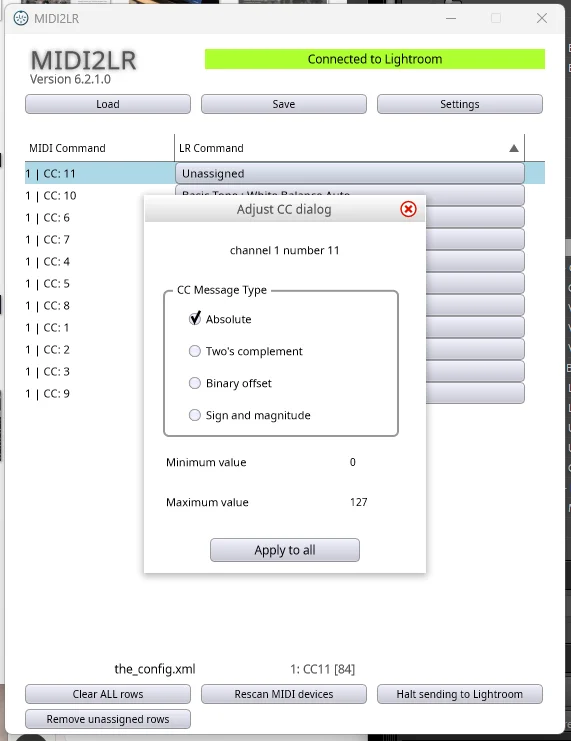
- MIDI2LR should auto-launch with Lightroom. If the mapping window doesn't appear, go to
File → Plug-in Extras → MIDI2LR - If MIDI2LR doesn't appear in that menu, go to
File → Plug-in Manager → Add, and browse toC:\Program Files\MIDI2LR\MIDI2LR.lrplugin - The MIDI2LR window should show "Connected to Lightroom" in green
- Turn a dial on your Monogram—the CC number should appear in the MIDI2LR mapping list
- Use the dropdown next to each CC to assign the corresponding Lightroom parameter (e.g., CC:0 → Basic Tone: Exposure)
At this point your hardware is talking to Lightroom again. But don't stop here—there's one more step that makes or breaks the experience.
Step 3: The Critical Fix—Set Two's Complement
This Is the Step Most People Miss Critical
Without this, your dials will jump to extreme values—one tick on the Exposure dial sends it to +5.00 instead of making a smooth 0.05 increment. You'll also see sync errors like this:

For each dial mapping in the MIDI2LR window:
- Right-click on the LR Command dropdown for that mapping
- Select "Two's Complement" from the context menu
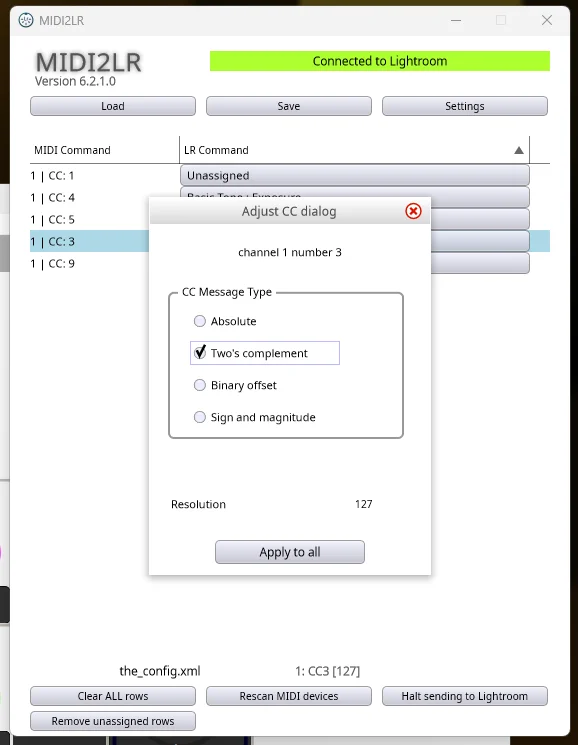
This tells MIDI2LR to interpret the incoming MIDI data as relative encoder values (small increments and decrements) rather than absolute positions. It's how Monogram dials send data in Relative mode, and MIDI2LR needs to know that.
Do this for every dial mapping. Sliders set to Absolute in Monogram Creator do NOT need Two's Complement—only dials and encoders set to Relative.
Step 4: Save Your Profile
- Once all controls are mapped, click Save in the MIDI2LR window
- Choose a descriptive filename like
Monogram-LightroomClassic.xml - This profile loads automatically next time, so you only set this up once
Tip: Write down your CC number assignments or stick a label on each module. Six months from now you won't remember that CC 4 is Highlights.
Troubleshooting
MIDI Mode option is grayed out or missing on a module
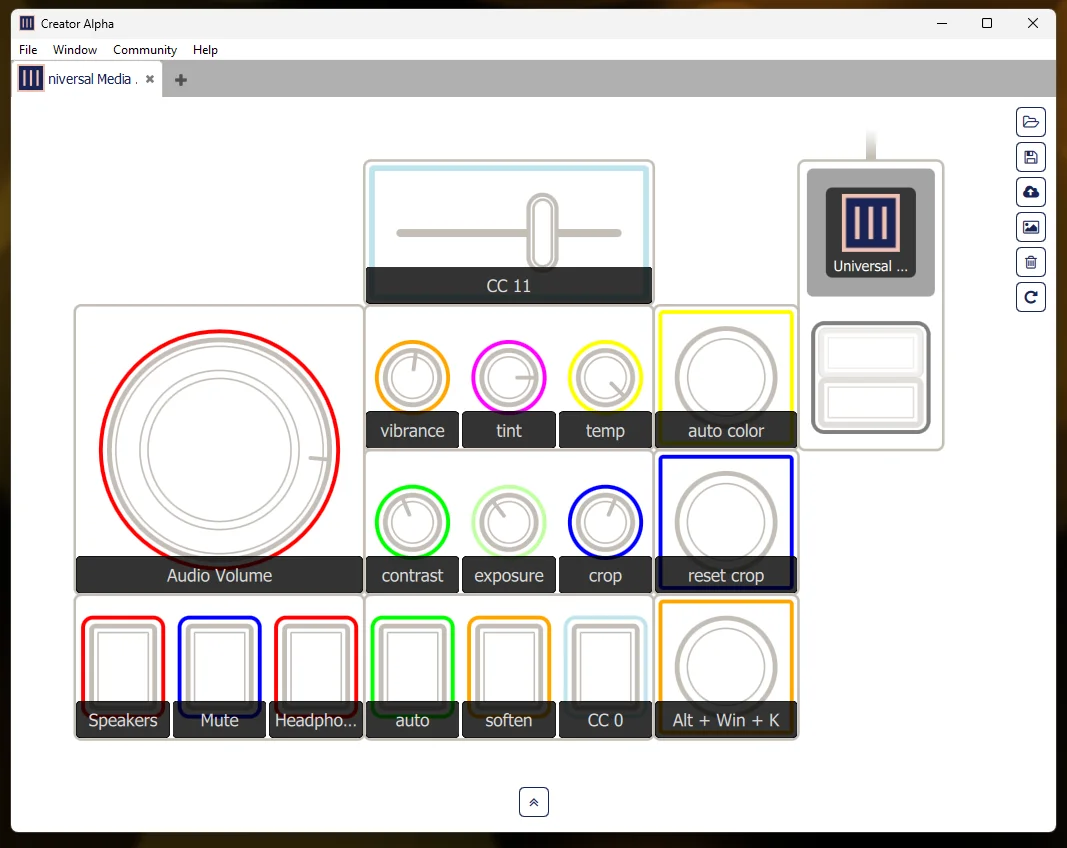
If you can't select MIDI Mode in the Dial Settings or Button Settings for a module, the Lightroom profile tab is likely blocking it. I ran into this myself—the original Lightroom tab in Monogram Creator wouldn't let me switch modules to MIDI mode. The fix: delete the Lightroom tab entirely and create a new "Universal" tab instead. The Universal tab gives you full control over every module's mode. As a bonus, you can use the same tab to send MIDI commands to other apps too—I use mine for both Lightroom and my RME TotalMix audio interface.
A control isn't behaving the way you expected
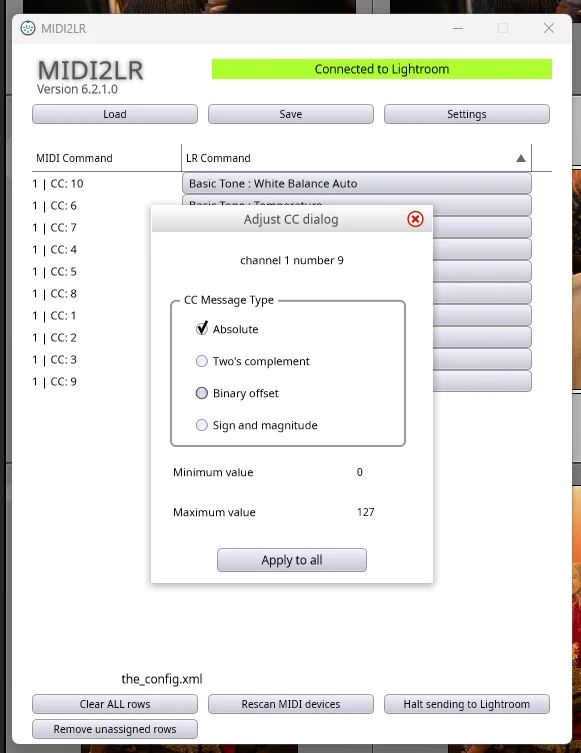
Right-click the LR Command dropdown for that control in the MIDI2LR window. This opens the Adjust CC dialog where you can change the CC Message Type (Absolute, Two's Complement, Binary offset, Sign and magnitude), adjust resolution, and set min/max values. Every control type has different optimal settings—if something feels off, this dialog is where you fix it.
"Controller not detected in MIDI2LR"
Make sure Monogram Creator is running and modules are in MIDI mode before launching Lightroom. Startup order matters: Monogram Creator first, then Lightroom Classic, then MIDI2LR auto-launches. If you launched in the wrong order, close everything and start over.
"Values jumping to extremes"
You forgot to right-click → Two's Complement on that dial mapping. Go back to Step 3. This is the most common issue and affects every dial set to Relative mode in Monogram Creator.
"Straighten Angle Controller not synchronized" or similar sync errors
This means a control's MIDI value is out of sync with Lightroom's internal state—the module thinks it's at position 45 while Lightroom is at 0. This typically happens with controls set to Absolute mode. Right-click the mapping in MIDI2LR and verify the CC Message Type matches how the module is configured in Monogram Creator (Absolute for sliders, Two's Complement for dials).
"MIDI2LR not appearing in Lightroom"
Check File → Plug-in Manager. If it's not listed, click Add and browse to C:\Program Files\MIDI2LR\MIDI2LR.lrplugin. Make sure the plugin is enabled (green dot). If it shows a red error, try removing and re-adding it.
"Monogram Creator won't launch"
Try reinstalling from monogramcc.com/download. The latest version (5.10.1) has authentication server dependency removed, so it should still launch even though the company is defunct. If the download page is gone, search for "Monogram Creator 5.10.1" — archived installers are floating around.
Dial sensitivity is too fast or too slow
Two places to adjust this. In Monogram Creator, each dial has a Sensitivity setting (the dot slider at the bottom of Dial Settings)—try different levels. In MIDI2LR, the Resolution value in the Adjust CC dialog (right-click the mapping) controls how many MIDI steps map to the full parameter range. Lower resolution = bigger jumps per tick.
If Your Monogram Hardware Is Dead
If your Monogram modules have physically failed and you can't get replacements, the Behringer X-Touch Mini ($60-70) is the best budget option using this same MIDI2LR approach. It has 8 rotary encoders, 8 buttons, and a slider—everything maps the same way described above. The TourBox Elite ($268) is a pricier alternative with its own native Lightroom Classic integration, no MIDI required. Both of those are worth a dedicated writeup—for another day.
Wrapping Up
This fix took about 20 minutes to set up and has been rock solid since—tested on Windows 11 with Lightroom Classic and MIDI2LR v6.2.1.0 as of February 2026. Our studio processes hundreds of thousands of images a year, and if anything, the editing workflow is faster now than it was with the original Monogram plugin.
MIDI2LR is also more flexible—you can map any Lightroom parameter to any control, create multiple profiles for different editing workflows, and the open-source project is actively maintained. You're no longer dependent on a company that stopped answering emails.
If you got this working, hit a wall, or found a better approach, I'd genuinely like to hear about it—drop us a line.
Last updated: February 2026